Data: Tableau Public Cheat Sheet
Tableau Public Cheat Sheet
Set-up and Installation
- Register for an account here.
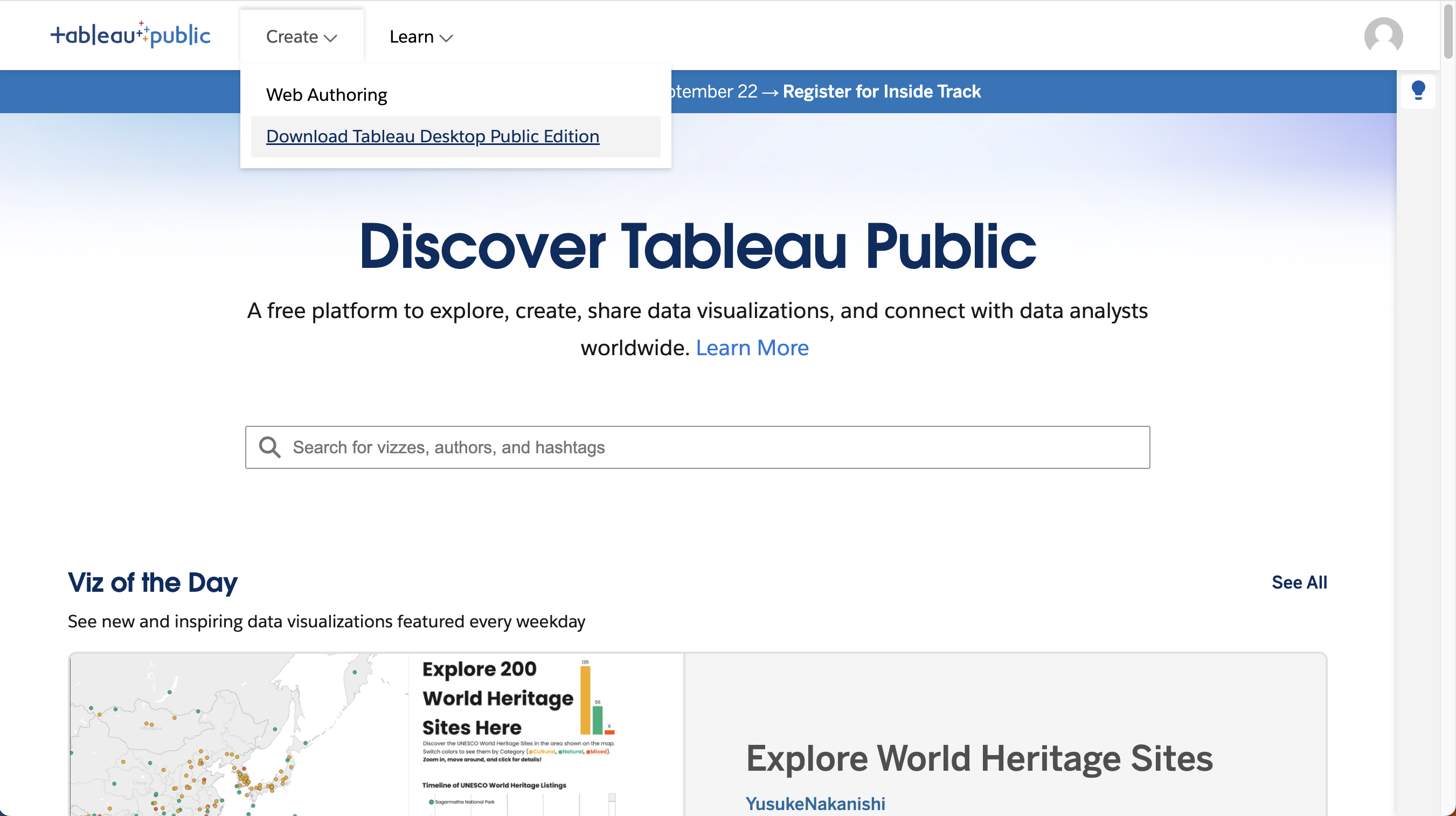
- Then, download and install Tableau Public:
How to Load Data
- Open Tableau Public and click File → Open or Connect to Data.
- Tableau offers numerous sample data sets for you to experiment with.
- You can upload data in a variety of formats. Additionally, if you get the paid version, you hook Tableau up to your own databases and create "real time" dashboards (common in industry).
What is a Sheet?
A Sheet is a single visualization (chart, map, table, etc.). It’s the basic building block in Tableau. You can create multiple sheets, then combine them into a Dashboard later.
Measures vs. Dimensions
- Dimensions = categories, qualitative fields (e.g., Country, Product, Year).
- Typically discrete values.
- Used to group the data into categories.
- Measures = numeric fields (e.g., Sales, Profit, Temperature).
- Typically continuous values.
- Used for calculations, aggregations (SUM, AVG).
- Tableau automatically separates them in the sidebar:
- Top = Dimensions
- Bottom = Measures
"Show Me" Chart Recommendations
The Show Me panel (top-right) suggests visualizations. Hover over each chart type to see the minimum number of dimensions/measures required.
Example:
- Bar charts need 1 dimension + 1 measure
- Scatter plots need 2 measures
- Maps need geographic dimension + measure (optional)
Drag fields onto rows/columns, then click a chart type in Show Me.
How to Create a Dashboard
A Dashboard combines multiple sheets into one interactive view. Steps:
- Click New Dashboard (bottom tab).
- Drag your sheets from the left sidebar into the workspace.
- Adjust layout (floating vs. tiled).
- Add filters so clicking in one chart updates others.
How to Publish to Tableau Public
When ready, click File → Save to Tableau Public. You’ll need a free Tableau Public account.
Once published:
- The visualization is accessible via a public link.
- You can embed it in a website, share on social media, or download later.