Assignments > JavaScript DOM Manipulation
Due Tue, 11/04 at 11:59pm
Introduction
The goal of today's lab is to:
- Help you practice using JavaScript to target and modify HTML elements in your DOM Tree.
- Continue practicing your CSS skills.
- Exploring some common UX/UI widgets and how they're implemented using JavaScript.
Cheatsheet
Please see the JavaScript Cheatsheet to get some hints and tips.
Setup
Please download the lab05.zip file, unzip it, and move it into yoru mser521 folder:
1. Theme Switcher
Open styles.css and scroll down to ~line 70. You will see three classes ( ocean, desert, and high-contrast) which correspond to three different themes. If you apply any of these classes to the <body></body> tag and preview your HTML, you will see that the theme changes. Try it out!
You job is to make the buttons dynamically change the theme of the web page as pictured below. When you're done, your web page should look like this:
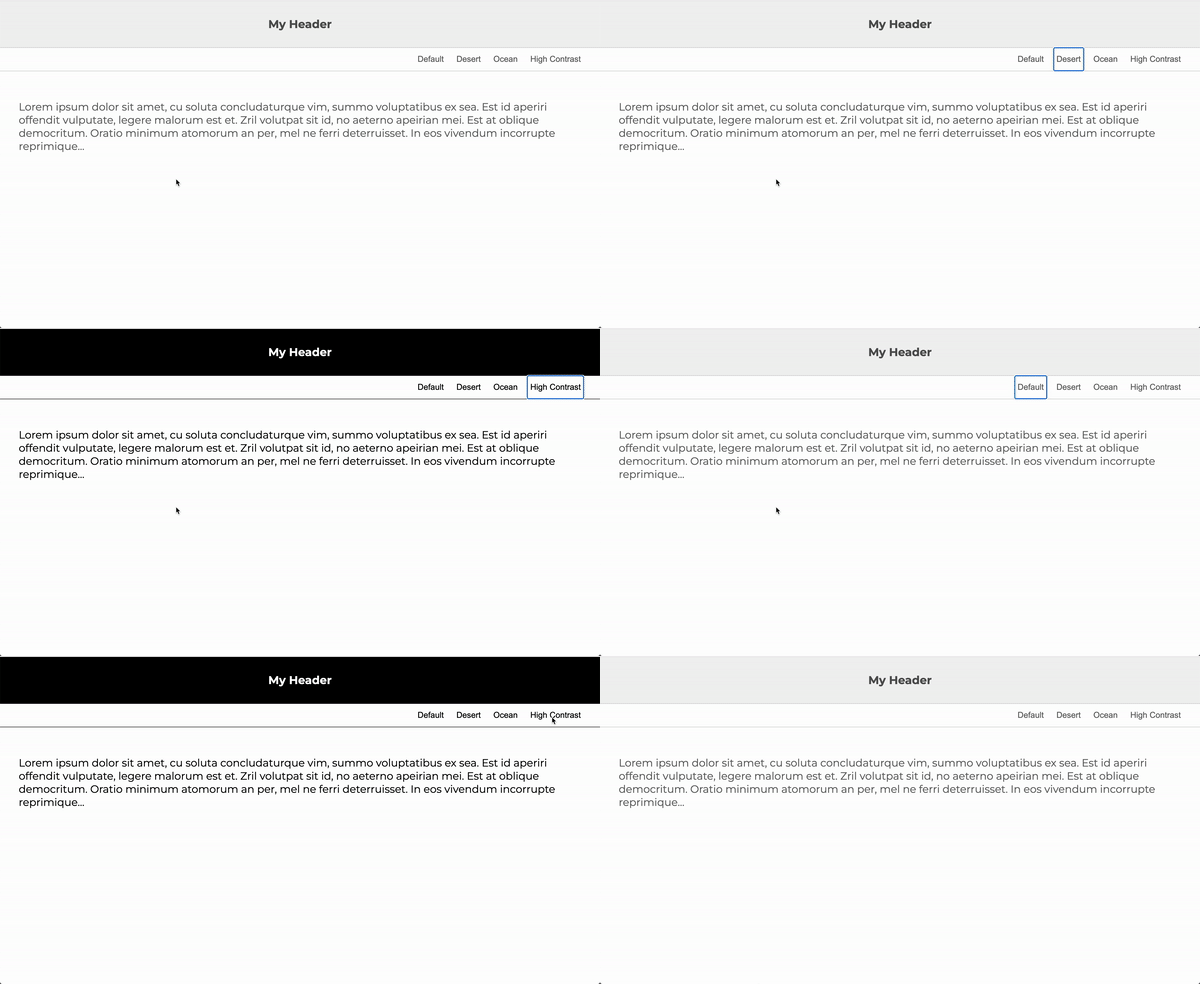
Hints:
- Inside of
index.js, create a single function calledchangeClass()that has one parameter, which will store the name of the class as a string. - Within the
changeClass()function body, set the body's class attribute to the name of the class passed into the function. If thedefaultbutton is clicked, just unset the class on the body tag. - Attach your
changeClass()function to the click event of each button. Make sure you're passing in the correct argument. - Use the cheatsheet to figure out how to modify the class attribute.
Optional
If you have time, try creating your own theme in the styles.css file and creating another button so that when you click on the new button, your theme shows up.
2. Hamburger Menu
As you probably already know, a hamburger menu is a common design pattern for showing and hiding the navigation of your web page if you are on a mobile device.

Your job is to modify the JavaScript file so that it achieves the effect shown below. Specifically:
- Clicking the hamburger menu when closed adds the
activeclass to both thebuttonandulelements. - Clicking the hamburger menu when open removes the
activeclass from both thebuttonandulelements.
Hint: Consider using the classList.toggle("some_class") method (see cheatsheet above, or google it). The classList.toggle() method will automatically add the class if it's not present, or remove it if it is present - perfect for this use case!
3. Drawer
Create a sliding drawer that opens from the left side of the screen by implementing the JavaScript functionality for the drawer.

Requirements for drawer.js
- Select the drawer element using
document.querySelector("#drawer") - Create an
openDrawer()function that:- Adds the "open" class to the drawer element
- Sets the
aria-hiddenattribute to "false"
- Create a
closeDrawer()function that:- Removes the "open" class from the drawer element
- Sets the
aria-hiddenattribute to "true"
Hints:
- Use
element.classList.add()andelement.classList.remove()for CSS classes - Use
element.setAttribute()for ARIA attributes
Requirements for index.html
- Attach the
openDrawer()function to the "Open" button's click event - Attach the
closeDrawer()function to the "Close" button's click event
4. Fancy Drawer
For an extra challenge, try implementing the fancy drawer in the 04-drawer-fancy folder. In addition to showing / hiding the drawer, you will actually modify the content of the drawer to show the image and the caption (which can be accessed from the img element).

To do this you will modify the template in the JavaScript openDrawer() function to display some data from the DOM.
Hints:
- Use template literals (backticks) to create multi-line HTML strings
- Use
${variable}syntax to insert variables into the template - Use
element.innerHTMLto set the drawer's content
Here is a video walkthrough if you need some help.
5. Carousel
If you were on a front-end team and in need of a carousel, you would probably use a pre-made widget from an existing design system / UI kit. That said, it is useful to understand how these widgets work so that you understand the basic idea.
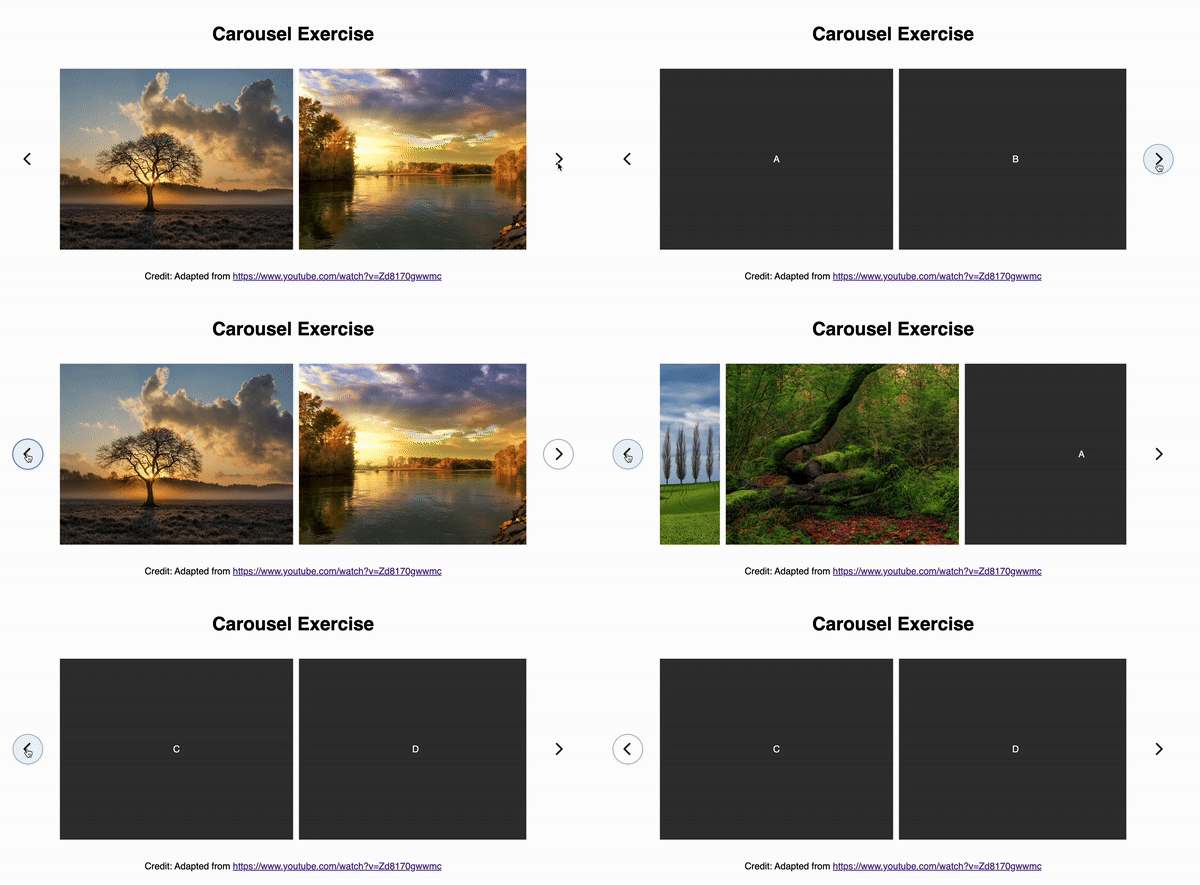
Given this, please open the 05-carousel folder and make the following changes:
- Add comments to the
index.jsfile explaining what each of the statements does. - [Optional]
- Stylize the buttons using one of the font-awesome icons (or some other image or icon).
- Change out the photos.
- Make any additional stylistic changes you see fit.
Understanding the Carousel: The carousel works by moving all slides together using
transform: translateX(). The math(slideWidth + gap) * currentPositioncalculates how far to move based on the current position. For example, if each slide is 400px wide with a 10px gap, and we're at position 2, we move all slides by(400 + 10) * 2 = 820pxto the left.
For this task, you may not use an AI assistant to comment the
index.jscode for you. YOU need to do it.
What to Submit
Please make sure that you have completed all 5 exercises.
When you're done, please create a link from your homepage to each of your Lab 5 exercises (see Sarah's homepage for an example). Then, commit and push all of your edits to GitHub and, paste a link to your GitHub Repository and to your GitHub pages in the Moodle submission.